
Allowing Others Access to Google Analytics
I can remember as I was growing up I had this strange fascination for models (the plastic ones you build). I really like building small scale models of bikes and cars. The first model I got was for Christmas and I will never forget it. It was a 1956 Chevy. Man was I excited, at that particular moment all I wanted to do was open the model and start building. I could hardly wait!

Also on TechWyse:
How To Share Google Analytics Custom Reports Between Profiles
A Beginner’s Guide to Google Analytics Users Flow
Well, within a couple hours I opened the box and started to learn how models were put together. After all, this was my first experience with a new toy. But I wasn't really sure how to get started (6 years old)
"Ummm, mommy can you help me?" asks Robert.
"You asked for a model from Santa, you'll have to learn how to build it" Mommy replies.
"Please mommy, just help me get started" Pleads Robert.
Mommy decides to help Robert with the basics. She showed me how the instructions worked and to follow the numbers. A quick explanation on the various symbols to pay attention to was also very helpful. That was really all I needed to become a master small scale model builder...A simple guiding hand.
A Common Google Analytics Question
I am often asked questions by friends, clients, and associates that seem very simple to me. This is because I build Google analytics models for websites every day. A new client jumped aboard the TechWyse Internet Marketing train today and wouldn't you know it, she began with a professional Google Analytics set up. In order for a set up to be performed administrative access is required. I advised our new client and she replied “How do I do that?". It seems the same questions keep coming up so I thought I'd answer one of the most commonly asked questions I get asked when starting a new Google Analytics setup.
How Do I Give Access To Other People in My Google Analytics Account?
There are 2 ways you can give access to people you want to see your Google analytics interface.
- View Only- Basically allows a user full access to viewing and downloading your data
- Administrative Access- No holes barred, full access to all data, analytics settings such as goals filters and user administration.
A Step By Step Guide on How to Give other People Access to Analytics
A) Login to your Google Analytics account http://www.google.com/analytics/
B) Go to “User Manager” found at the bottom of the page
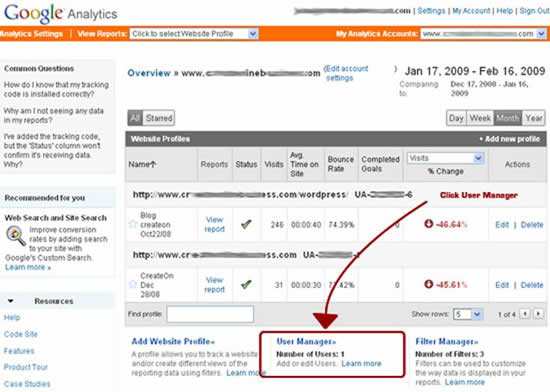
C) Click “Add User”.
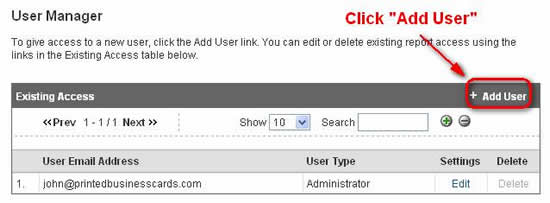
D) Enter the User’s email address. Note: if the address is not registered as a Google account, the user will have to use his/her address to register for one.
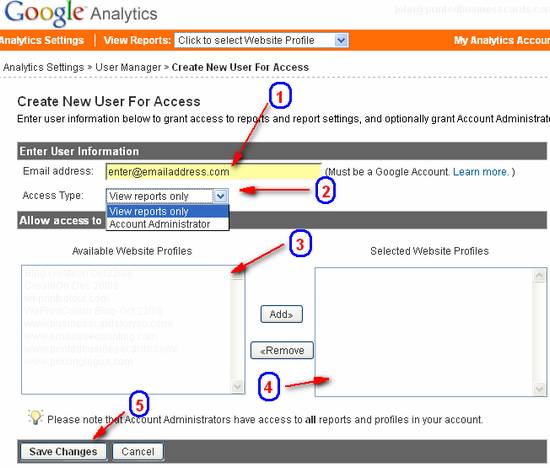
1) Enter the email Address
2) Choose the permissions you want the user to have. View means the user will only be able to see the data; Account administrator gives full access to data and settings. This is the correct setting for any technical help you need, set up or trouble shooting. Do not assign this permission to anyone unless it is required.
3) Any existing profiles you have will show up and you can add them if you want.
4) Anything you “add” from the “Available Websites” profile box will show up here
5) When you are done save your changes
That’s all there is to it. You are done! The above illustrations are screen captures taken from the Google Analytics interface. I used my model building skills to provide the numeric, step-by-step instructions. If you find it confusing I made a very quick video demonstration of the same process. This video is based on giving TechWyse (or any other trusted analytics consultant) administrative access.









on
Great Post Sir!Its very important that clients and companies too show there real time achievements to others via this sharing. Thanks for such beautiful Explanation!
on
it is useful to help people work out where to focus their marketing efforts: whether it’s on increasing traffic, driving conversions or growing revenue.
on
Hello Sir!
you post here very nice information about sharing analytics access from other gamil id,, thanks for this.
on
Thanks Rob, very helpful.
on
As a personal assistant to a real estate agent, I used to send single pages showing hits etc to each of the customers. This seems to be saying that I put their email address on here and they access the account, not just their own statistics. Has this other option been eliminated?
on
Thanks Rob for sharing this. Was exactly what I needed. Although in the new analytics the interface has been changed.
on
but how does the person that has just been added get access, do they log in with their own credentials (i.e. into their own account)? or do they have to log in via the top level account that set up the additional user?
on
It’s such a handy option. That’s why I prefer Analytics to other statistic meters. There is more transparency here than with any other tool!
on
Gee, I should have known this earlier. It’s a very safe and sane way to share than giving the gmail username and password. Thanks for the education Robert 🙂
on
Good post Robert!
This is a new option to me. I never tried this sharing option.This is indeed a nice option, especially sharing analytics account for viewing reports.
on
Yes I see that a lot DJ. I forgot to mention that in my post but that’s a valid point.
Once your assignment is completed with your new user it is a good idea to remove them or keep them on board for specific reasons. All your users and administrators of your Google Analytics account should have a reason for being there.
on
Very nice post Robert! The one thing I noticed most people forget to do is ‘unattach’ the people they have shared their account with when they are no longer affiliated!